
Why Google Isn’t Indexing Your Shopify Products

You added your products, polished the descriptions and published the store. Then you search for a product name and nothing shows up. If that sounds familiar, you are dealing with a common problem: Google not indexing Shopify products. The good news is that the cause is usually findable, and most fixes are simple once you know where to look.
This guide explains what indexing actually means, how to read the status Google gives each page, the most common reasons Shopify product pages get left out, and a step-by-step process to fix them. No tricks and no promises of instant rankings, just a clear way to diagnose your own store.
What Does “Indexed” Mean?

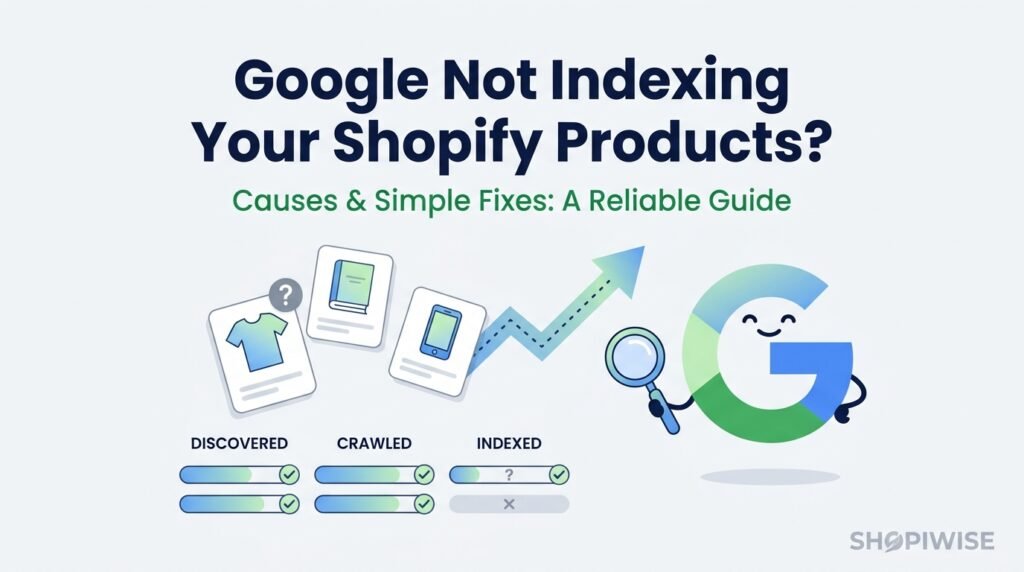
Google works in stages. It first discovers a URL, then crawls it (visits the page), and finally decides whether to add it to its index, the database that search results come from. A page that is not in the index cannot appear in search results, no matter how good the product is.
Being crawled does not guarantee being indexed. Google chooses what to keep, and it can skip pages it considers duplicates, low value or blocked. That is why the first job is to find out which stage your product pages are stuck at.
Step 1: Find Out What Google Is Telling You
Open Google Search Console and go to the Page indexing report. It lists the pages Google has not indexed and the reason for each one. You can also paste a single product URL into the URL Inspection tool to see its status and run a live test. Here are the statuses you are most likely to meet:
- Discovered, currently not indexed: Google knows the URL exists but has not crawled it yet. Google says this is not an error, and it can happen when Google delays a crawl to avoid overloading your site.
- Crawled, currently not indexed: Google visited the page but chose not to index it for now. It may index the page later, and Google notes you do not need to resubmit it for crawling.
- Duplicate without user-selected canonical: Google sees the page as a copy of another and picked its own preferred version.
- Excluded by no index: A no index instruction told Google to keep the page out of the index.
- Blocked by robots.txt: Google was not allowed to crawl the page.
- Soft 404: The page looks like a “not found” page but returns a normal success response.
The Most Common Reasons Shopify Products Are Not Indexed
1. Google has not found your products yet
New stores often have no links pointing to them, so Google has little reason to visit. Shopify creates a sitemap automatically at yourdomain.com/sitemap.xml, and it links to separate sitemaps for products, collections, blogs and pages. Submitting it in Search Console gives Google a clear list of your URLs. In Search Console, go to Indexing, then Sitemaps, enter sitemap.xml and click Submit.
2. Your store is still in private mode
Shopify notes that sitemaps cannot be read while a store is in private mode, so Google cannot use them. If your store is still password protected, remove the password before expecting products to be discovered.
3. The product pages are thin or copied
This is one of the biggest causes of “Crawled, currently not indexed”. Many stores paste the manufacturer description onto every listing, or publish pages with only a title and a price. Google has little reason to keep a page that adds nothing new. Write original descriptions that answer real buyer questions: who the product is for, materials, sizing, use cases, shipping and returns. Add clear images and, where possible, genuine customer reviews.
4. Duplicate pages and canonical confusion
Variants such as size and color can create near-identical pages, and products can be reachable through more than one URL. Shopify themes typically add canonical tags to point Google to the main product URL, but themes and apps can change this. If the “Duplicate without user-selected canonical” status appears, check that each product page declares the correct preferred URL, and make genuinely different products look genuinely different.
5. A no index tag or robots.txt rule is blocking the page
A stray no index tag, often added by an SEO app, a theme edit or a developer testing the store, can quietly keep products out of Google. Run a live test in URL Inspection to see whether Google can crawl and index the page. If you find a no index tag you did not intend, remove it, confirm with a live test, and then request indexing. Also review your robots.txt rules to make sure product URLs are not blocked.
6. Weak internal linking
Pages that few other pages link to look unimportant. Make sure every product belongs to at least one collection, collections appear in your navigation, and your best products are linked from your homepage, blog posts and related-product sections. Strong internal links help Google discover products and understand which ones matter.
7. Soft 404s and unavailable products
If a discontinued product page says “not found” or “unavailable” but still loads normally, Google may treat it as a soft 404. For products that are gone for good, use a proper redirect to a relevant collection or similar product. For products that are only temporarily out of stock, keep the page useful with details and a back-in-stock option.
8. Slow or unreliable pages
Heavy themes, oversized images and too many apps can slow your store. Slow or error-prone pages make crawling harder and give shoppers a poor experience as well. Compress images, remove apps you do not use and test your key product pages on mobile.
How to Fix Indexing Problems: A Simple Workflow
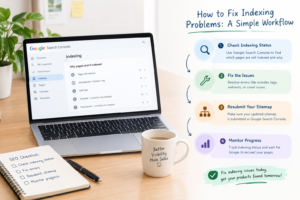
- Open the Page indexing report and group affected URLs by status.
- Inspect one affected product page with URL Inspection and run a live test.
- Fix the cause: remove accidental no index tags, correct canonicals, strengthen thin content or improve internal links.
- Confirm your sitemap is submitted and shows no errors.
- Use URL Inspection to request indexing for your most important pages.
- Wait and monitor. Do not keep resubmitting the same URL.
Google says crawling can take from a few days to a few weeks, and that asking for a recall repeatedly does not make it happen faster. It also states that a crawl request does not guarantee a page will appear in search results. Quality and usefulness still decide the outcome.
Common Mistakes to Avoid
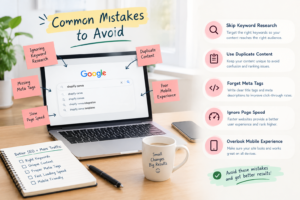
- Resubmitting the same URL again and again. It does not speed things up.
- Publishing hundreds of near-identical product pages. Quality beats quantity.
- Leaving the store password-protected after launch.
- Installing multiple SEO apps that conflict. Overlapping tools can create duplicate or contradictory tags.
- Assuming the site: search is the full picture. Use Search Console for reliable data.
Frequently Asked Questions
How long does it take Google to index a Shopify product?
It varies. Google states that crawling can take a few days to a few weeks. Strong internal links and a submitted sitemap can help Google find pages sooner, but there is no fixed timeline.
Does Shopify create a sitemap automatically?
Yes. Shopify generates a sitemap file automatically at /sitemap.xml and updates it as you add content. You only need to submit it in Google Search Console.
What does “Discovered, currently not indexed” mean?
Google knows the URL exists but has not crawled it yet. Google describes this as not an error. Improve internal links, keep your site fast and give it time.
What does “Crawled, currently not indexed” mean?
Google visited the page but decided not to index it for now. Improving the page’s content and internal linking is the usual next step.
Should I use the Request Indexing button for every product?
Use it for your most important pages. For many URLs, rely on your sitemap instead, and avoid repeated requests for the same page.
Conclusion: Diagnose First, Then Fix
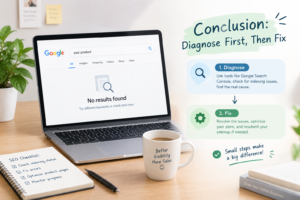
When Google is not indexing your Shopify products, the answer is almost always in your Search Console reports. Identify the status, check the basics (sitemap, password mode, noindex tags), improve thin pages and strengthen your internal links. Then be patient and monitor the results.
If you would rather have an expert handle it, Shopiwise can help with Shopify store setup and optimization and SEO-focused digital marketing. Visit Shopiwise.com or contact our team to get your store reviewed.