Javeria fatima

Complete Shopify Ads Audit Checklist and Step-by-Step Guide
Digital Marketing

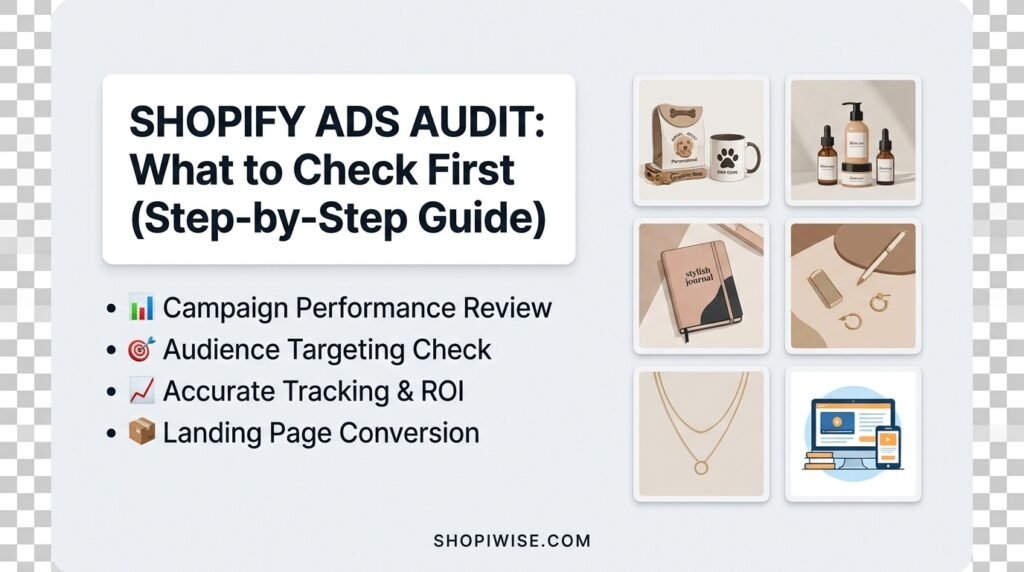
Shopify Ads Audit: What to Check First (Step-by-Step Guide)

Shopify Ads Audit: What I’d Check First If your Shopify ads are not performing, the instinct is to change the ad. New image, new headline, new audience. But random changes make it hard to learn anything. A proper ads audit works the other way around. You check things in a sensible order, starting with the ones that could make every other number meaningless. This guide walks through what to check first in a Shopify ads audit, why that order matters, and how to decide which problems to fix now and which can wait. What Should You Check First? Check your tracking first, because bad data ruins every later conclusion. Then look at your store and landing pages, your profit margins, your campaign structure, your audiences, your budget and bidding, your creative, and finally your account health. Work from the foundation upward, and fix blocking problems before you tweak anything else. Step 1: Tracking and Measurement Audit guides consistently put tracking at the top. Confirm that your pixel is receiving the right events, that purchases are recorded with the correct values, and that server-side events, where used, are not double counting orders. Then compare purchases in the ad account with orders in Shopify. A large unexplained gap means you cannot trust the reports yet. Step 2: Store and Landing Pages Test the exact pages your ads send people to, on a real phone. Can a new visitor tell what you sell within seconds? Do pages load quickly? Are shipping times, returns and sizing easy to find? Place test orders to check the cart, discounts and checkout. A broken checkout or slow page is a blocking issue that no ad change can fix. Step 3: Profit and Economics A campaign can look healthy on revenue and still lose money. Work out whether realistic orders stay profitable after product cost, shipping, discounts, returns and ad spend. Compare results with your own break-even point instead of generic benchmarks. If the math does not work, optimizing the ads will not rescue it. Step 4: Campaign Structure Check that campaigns have clear names and that each objective and optimization event matches your goal. Look for structures split so finely that each ad set gets too little data to learn from. On the other hand, ad sets that are too broad can hide what is actually working. Aim for a clean setup you can read at a glance. Step 5: Audiences and Targeting Confirm the ads reach the countries and languages you actually sell to. Check that existing customers are excluded from prospecting campaigns, that retargeting audiences are built from good sources, and that ad sets are not overlapping so the same people see your ads repeatedly. Step 6: Budget and Bidding Check that your bid strategy matches your objective and that each ad set can realistically generate enough conversions to learn. Frequent edits and thinly spread budgets can hold back delivery. Treat any budget increase as a separate decision, made only after the foundations above are sound. Step 7: Creative and Fatigue Look at whether you have enough variety so performance does not depend on one or two ads. Watch frequency, cost trends and conversion rates together to spot fatigue, rather than relying on a single fixed number. Keep a regular testing routine and check that every ad link works and carries consistent tracking tags. Step 8: Compliance and Account Health Finally, review ad rejections, policy warnings and any account restrictions. Make sure your landing pages stay consistent with what the ads claim, and that payment and business verification are in order. Problems here can limit delivery no matter how good the ads are. How to Prioritize What You Find You will probably find more issues than you can fix at once. Sort each finding into one of three groups so you act on the right things first. Group Meaning Examples Blocking issue Fix before spending more Broken checkout, unreliable tracking, policy restriction Needs work Fix soon, it is costing you results Slow mobile page, overlapping audiences, thin creative variety Pass Working well, leave alone Clean structure, accurate purchase tracking   Make one meaningful change at a time where possible, then wait long enough to judge the effect before changing something else. A Simple Example Imagine a store selling reusable water bottles. The owner audits in order. Tracking shows ad account purchases are about twice what Shopify records, caused by duplicated events. The landing page loads slowly on mobile, and the best-selling color is out of stock. After fixing tracking and the page, the owner sees the real numbers and finds the campaign was less profitable than it looked, so they adjust pricing before spending more. This is an illustrative scenario, not a real client result. Common Mistakes to Avoid Changing ads before checking whether tracking is accurate. Judging performance by revenue alone without checking margin. Sending paid traffic to pages nobody has tested on mobile. Fixing everything at once so nothing can be measured. Comparing results with generic benchmarks instead of your own break-even point. Scaling the budget before blocking issues are cleared. Frequently Asked Questions What is a Shopify ads audit? It is a structured review of your ad accounts and store to find what is limiting performance, covering tracking, structure, audiences, budget, creative and store readiness. How often should I audit my ads? There is no fixed rule. Many advertisers review regularly and run a deeper audit when results change suddenly or before increasing spend. Choose a rhythm that suits your budget and pace. Should I audit the ads or the store first? Start with tracking, then the store and landing pages. If the page or measurement is broken, ad changes will not help. Can I do an ads audit myself? Yes, using the checklist above. If the account is large or the numbers are confusing, an outside review can save time. Conclusion A good audit saves you from guessing. Start with tracking, confirm the store and economics work, then move through

Top 5 high margin Shopify niches and profitable products for 202
Shopify, Uncategorized

Top 5 High Margin Shopify Niches in 2026 (With Tips)

Top 5 High Margin Shopify Niches in 2026 Every Shopify store owner wants healthy margins, and the niche you choose has a big influence on them. Two stores can take the same number of orders and finish the year with very different profit, simply because one niche leaves more room between the selling price and the cost of delivering the product. In this guide you will meet five high margin Shopify niches to consider in 2026, learn why each can support strong margins, see the risks to watch for, and follow a simple process to test a niche before you invest heavily. Margins vary by seller, supplier and advertising costs, so treat this as a shortlist to research, not a promise. What Makes a Niche High Margin? A high margin niche is one where the gap between what customers pay and what it costs you to deliver is wide enough to survive advertising, shipping and returns. Shopify’s own guide to high margin products points to several factors: Perceived value. Products priced well above their production or sourcing cost leave more room for profit. Light, compact shipping. Shopify notes that high margins are easier with lightweight items than with heavy, bulky ones. Low return rates. High returns increase costs and reduce margins. Limited price competition. Heavy competition can lead to price pressure. Repeat purchases. Customers who reorder spread your acquisition cost across more sales. Remember that gross margin is not profit. Gross margin is (price – product cost) / price. As a rough rule for advertising, your break-even return on ad spend is about 1 divided by your gross margin. With a 50% gross margin, you need about 2.0 in sales for every 1.0 spent on ads, before other costs. 1. Beauty and Skincare: Light, Repeatable and Brand able Skincare is one of the most commonly cited high margin niches. Many formulas cost far less to make than their retail price, bottles are light to ship and happy customers reorder. Shopify’s guide cites an average gross profit margin of about 64% for beauty and skin care, although figures differ by source, product and year. Watch out for: a crowded market, rising ad costs, and rules on ingredients, labelling and health claims that differ by country. Avoid medical promises and check local regulations before launching. Idea: niche down by skin concern, ingredient preference or customer group instead of selling skincare in general. Strong photography and branding matter, so consider professional graphic design support. 2. Health and Wellness: Routine-Based Products Health and wellness spans supplements, teas, sleep, recovery and mindfulness products. Consumables can drive repeat orders and suit subscriptions, and customers often pay more for products that fit their daily routine. Watch out for: this is among the most regulated niches. Claims, ingredients, labelling and shipping rules vary by country, so research the requirements before you source anything. Idea: if compliance feels heavy, start with lower-risk items such as journals, yoga accessories or recovery tools, then add consumables once your processes are solid. 3. Digital Products: No Shipping, No Stock EBooks, online courses, photography presets, design templates, music and software are all digital products that Shopify lists among high margin options. There is no inventory or shipping, and Shopify’s Digital Downloads app can send customers a download link at checkout. Watch out for: creation takes time, and demand is not automatic. You still need an audience, a clear promise and a refund policy. Idea: turn knowledge you already have into a planner, template pack or short course for one specific audience, or add a digital guide as an upsell to a physical product. 4. Jewelry and Accessories: Small, Light, High Perceived Value Jewelry and accessories are compact and easy to ship, and customers pay for design, meaning and brand rather than raw materials. Personalization such as names, initials or engraving can lift perceived value. Watch out for: material costs can change, sizing causes returns (especially rings), and shoppers need trust signals such as clear photos, reviews and a fair returns policy. Idea: build around a theme or occasion, such as birthstones, gifts or minimalist everyday pieces, and invest in clean, consistent photography. 5. Pet Products: Premium and Personalized Pet owners spend on animals they treat like family. Consumables and personalized items such as tags, bowls or bedding covers can bring repeat orders and room for margin. Watch out for: generic accessories like basic toys, leashes and bowls are very saturated, and food or treats add safety and labelling requirements that vary by country. Idea: specialize by breed, size or need, such as senior dogs or small apartments, and lean on personalization to stand apart. How to Choose and Test Your Niche Shortlist two or three niches you understand or can reach with marketing. Check demand over a long window. Google Trends shows a relative index, and Google notes that a spike alone does not mean a topic is popular or winning. Calculate profit per order after product cost, shipping, payment fees, advertising and returns, not just the supplier margin. Study competitors and look for gaps in positioning, quality or service. Run a small test with a limited budget before ordering large amounts of stock, and judge it by profit per order, not clicks.   Niche Why margin can be high Main watch-out Beauty and skincare Low formulation cost versus price, light shipping, reorders Crowded market and claim rules Health and wellness Consumables and subscriptions Heavy regulation Digital products No stock or shipping Needs an audience and creation time Jewelry and accessories Compact, high perceived value Sizing returns and trust Pet products Reorders and personalization Saturated generic items Common Mistakes to Avoid Choosing on margin alone. A high margin product still needs demand and a way to reach buyers. Trusting supplier margins. Gross margin on a spec sheet is not the profit left after ads, shipping and returns. Ignoring regulation. Skincare, supplements and pet food can carry rules that vary by country. Going too broad. A focused niche is easier to market than

what to fix before scaling your ad budget
Digital Marketing

Before scaling ad budget: What to fix first to protect your ROI

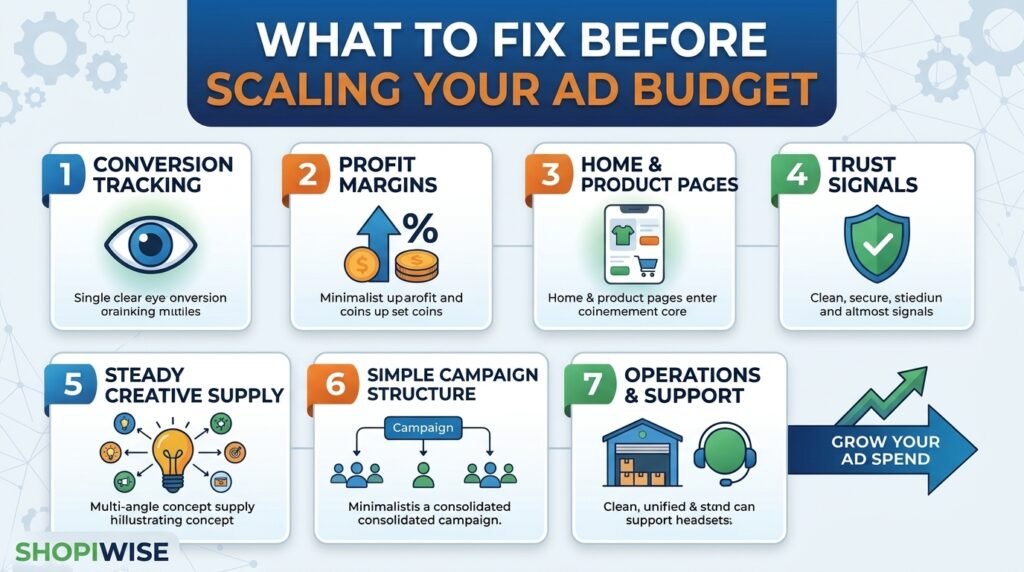
What to Fix Before Scaling Your Ad Budget Your ads are bringing in sales, so the next move feels obvious: spend more. But raising the budget does not fix problems. It makes them bigger. A leaky checkout, shaky tracking or thin profit margins can be easy to ignore at a small budget and expensive at a large one. This guide walks through what to fix before you scale your ad budget, how to check each area, and how to increase spend without panicking when results wobble. It is written for Shopify store owners and online sellers, and the ideas apply to Meta, TikTok and Google campaigns alike. What Should You Fix First? Before scaling, make sure your tracking is accurate, your profit survives ad costs, your store converts visitors well, you have fresh creative ready, your campaigns are simple enough to learn from, and your operations can handle more orders. Then raise the budget in controlled steps. Why Scaling Exposes Weak Spots At low spend, a small problem hides in the noise. A page that loses a few shoppers or a margin that is slightly too thin barely registers. At higher spend, you pay for every one of those losses at scale. Costs also tend to rise as you spend more, so doubling your budget will not necessarily double your results. That is why the smartest move is often to strengthen the foundation first. The checklist below covers the seven areas worth reviewing. The 7 Things to Fix Before You Scale 1. Conversion Tracking Ad platforms use your purchase data to decide who sees your ads. If that data is incomplete, the system is working with a blurry picture. Compare the purchases reported in your ad account with the orders in Shopify. Some guides recommend sending order data from the store backend as well, because browser-based tracking can miss sales. If the numbers are far apart, fix tracking before spending more. 2. Profit, Not Just Revenue A campaign can look great on return on ad spend and still lose money. Work out your margin after product cost, shipping, payment fees, returns and refunds. Then calculate the cost per purchase you can actually afford. Only scale products where the numbers still work with higher ad costs. 3. Homepage and Product Pages A shopper should understand what you sell within seconds. On product pages, answer the questions buyers usually have about sizing, materials, delivery and returns. Clear photos and plain language matter more than clever design. If many visitors leave without browsing, new traffic will not help. 4. Trust Signals Strangers arriving from an ad need reasons to trust you. Show genuine reviews, clear shipping and return policies, visible contact details and secure payment options. Never invent reviews or testimonials. They can mislead customers and break advertising rules. 5. A Steady Supply of Creative Ads wear out faster when more people see them. Before scaling, have several new angles ready, such as a problem-focused video, a customer-style demo and a benefit-led image. Testing different messages, not only different audiences, gives the platform more to work with. 6. Simple Campaign Structure Many small campaigns split your data into thin slices. Ad platforms generally learn better when conversions are concentrated in fewer, cleaner campaigns. Consolidate where it makes sense and avoid constant edits that restart learning. 7. Operations and Customer Support More orders mean more packing, shipping and customer questions. Check that you have enough stock, reliable suppliers, realistic delivery times and a support process that does not collapse under volume. A surge of late deliveries and refunds can cancel out your ad gains. Quick Pre-Scale Checklist Area What to check Warning sign Tracking Ad account purchases vs Shopify orders Large, unexplained gap Profit Margin after ad cost, fees and returns Break-even or negative at current cost per purchase Store Mobile speed, product pages, checkout Many visitors, few add-to-carts Trust Reviews, policies, contact details No visible policies or proof Creative New ads ready to test Only one or two ads running Structure Number of campaigns and ad sets Many tiny campaigns with few conversions Operations Stock, shipping, support capacity Slow replies or delivery delays already A Simple Example Imagine a store selling kitchen gadgets. One ad earns a good return, so the owner triples the budget. Sales rise at first, then costs climb and refunds increase. A review shows that tracking was counting some orders twice, the product page did not explain size clearly, and returns were eating the margin. After fixing tracking, updating the page and raising prices slightly, the owner scales again in smaller steps and the numbers hold. This is an illustrative scenario, not a real client result. How to Scale Once You Are Ready Advice on pacing varies. Older guidance suggested small increases of roughly five to twenty percent to avoid restarting the learning phase. Some experienced advertisers now say Meta handles budget increases more smoothly than it used to. Either way, costs usually rise at higher spend and results can change, so a measured approach is sensible. Scale proven ads first. Increase spend on campaigns that already perform well, not on weak ones. Raise the budget in steps. Make a moderate increase, then wait for results to settle before the next one. Watch the right numbers. Track cost per purchase, conversion volume and your real profit, not only return on ad spend, which can lag behind. Keep launching new creative. Add fresh ads while you scale, so you are not depending on one winner. Set a rollback rule. Decide in advance when you will lower the budget, for example if cost per purchase stays above your limit for several days. Common Mistakes to Avoid Doubling or tripling the budget overnight because one day looked great. Judging success by revenue and ignoring margin, refunds and shipping costs. Scaling before tracking has been checked against real orders. Constantly duplicating campaigns or tweaking audiences instead of fixing the store. Running out of stock or support capacity just as sales rise. Relying

why customers dont trust your online store and how to fix them
Shopify Tips

Why Customers Don’t Trust Your Online Store (and Fixes)

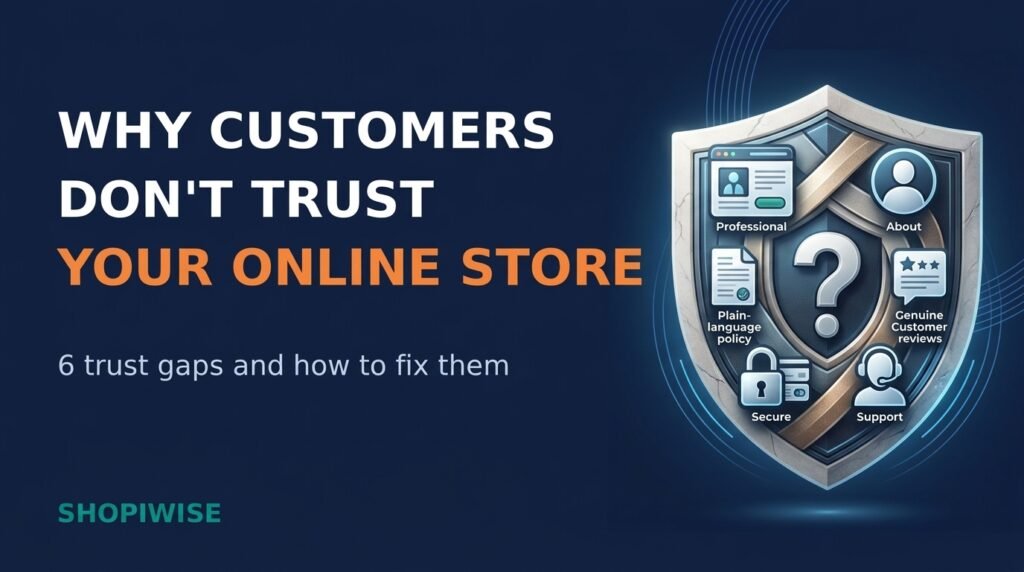
Why Customers Don’t Trust Your Online Store (and How to Fix It) You have a good product, fair prices and a store that looks fine on your screen. Yet visitors browse, hesitate and leave. Often the missing ingredient is trust. Online, shoppers cannot touch the product, meet the owner or walk into a real shop, so they look for small signals that tell them the store is real, honest and safe to pay. Trust problems are rarely caused by one big flaw. They build up from small gaps that you can find and fix. This guide covers six common reasons customers don’t trust your online store and shows what to do about each one, with practical steps for Shopify store owners and online sellers. Prefer a quick overview first? Watch the video above, then read on for the full breakdown. Why Trust Decides Whether Shoppers Buy Every online purchase involves a leap of faith: the customer pays first and receives the product later. Bayard Institute’s surveys found that roughly one in five shoppers, about 19 percent in one widely reported figure, had abandoned a checkout because they did not trust the site with their credit card information. Exact numbers vary by survey year, but the message is consistent. Trust is part of the buying decision itself. The good news is that trust is built from ordinary, visible details, and most of them are in your hands. Reason 1: Your Store Looks Unprofessional Shoppers judge a store in seconds. Inconsistent fonts and colors, blurry or stretched photos, spelling mistakes, broken links and pop-ups that cover the page all suggest that nobody is looking after the store. Product photos copied from a supplier can also hurt, because shoppers may have seen the same pictures on other sites. Choose one simple color palette and two fonts, and use them everywhere. Replace low-quality or supplier-default photos with sharp, consistent images, ideally original ones. Proofread product pages, banners and emails, then click every menu link and button. Limit pop-ups so they do not block the page the moment a visitor arrives. Test your store speed on a phone and fix anything that feels slow. If your visuals need a lift, a professional graphic design service can help you build a consistent, on-brand look. Reason 2: Shoppers Cannot Tell Who You Are Anonymous stores feel risky. If there is no About page, no contact details beyond a form, and no clue where the business is based, a cautious shopper has little reason to hand over card details. Write an About page with your real story, who runs the store and why you sell these products. Show a contact email and, if you can, a phone number, chat option or business location. Use the same brand name across your store, checkout, social profiles and emails. Link social profiles that are active and consistent with your store. Put a Contact link in both the header and footer. Only share details you are comfortable making public, and check the rules in the countries where you operate. Reason 3: Policies Are Missing or Unclear Before paying, many shoppers look for shipping, returns and privacy information. If they cannot find it, or it is full of vague wording, they may assume the worst. Shopify lets you add or generate refund, privacy, terms of service and shipping policies in your admin, and these are linked in the footer of your checkout pages. Shopify also notes that you remain responsible for following your published policies and should review them carefully. Write in plain language: delivery times, costs, who pays return shipping, the return time window and how refunds are issued. Link your policies in the footer, in your menu and near the Add to Cart button. Make sure every policy matches what you really do. A promise you cannot keep damages trust more than a strict rule. Privacy and consumer rules differ by country, so check the requirements for the regions you sell to, and consider legal advice for anything important. Reason 4: Social Proof Is Weak or Looks Fake Reviews act as a shortcut for shoppers who cannot inspect the product. A store with no reviews gives them nothing to rely on, while one with only perfect, generic praise can look suspicious. Ask real customers for a review a few days after delivery. Show photo reviews and a natural mix of ratings, and reply politely to criticism. Display ratings on product and collection pages, not only in one hidden section. Never invent reviews or customer counts, and do not hide honest negative feedback. This is also a legal matter. In the United States, a Federal Trade Commission rule that took effect on October 21, 2024 prohibits fake or false reviews, including AI-generated ones, and certain review suppression practices. Other countries have their own consumer protection laws, so honest reviews are the safe path everywhere. Reason 5: Checkout Feels Unsafe Shoppers often judge security by how a page looks and feels. Bayard’s testing found that people tend to trust their gut at the card form, and that concerns appear mainly when they reach the payment step, especially for less familiar brands. Confirm that every page of your store loads over HTTPS and shows the padlock in the browser. Offer familiar payment options, such as major cards and wallets like Shop Pay, Apple Pay or Google Pay where available. Keep the checkout consistent with your brand and avoid sending shoppers to unfamiliar-looking pages. Use security messages and badges only when they are genuine and tied to services you actually use. Reason 6: Support Feels Hard to Reach Buying is easier when shoppers believe someone will help if something goes wrong. If questions go unanswered, the store feels risky even before the first order. State a realistic reply time, such as “We reply within one business day,” and keep to it. Send an order confirmation and tracking updates automatically. Build a short FAQ page that answers questions you hear often. Offer a channel your

shopify ads wasting money and how to fix them
Digital Marketing

Shopify ads wasting money: Why they fail and how to fix them

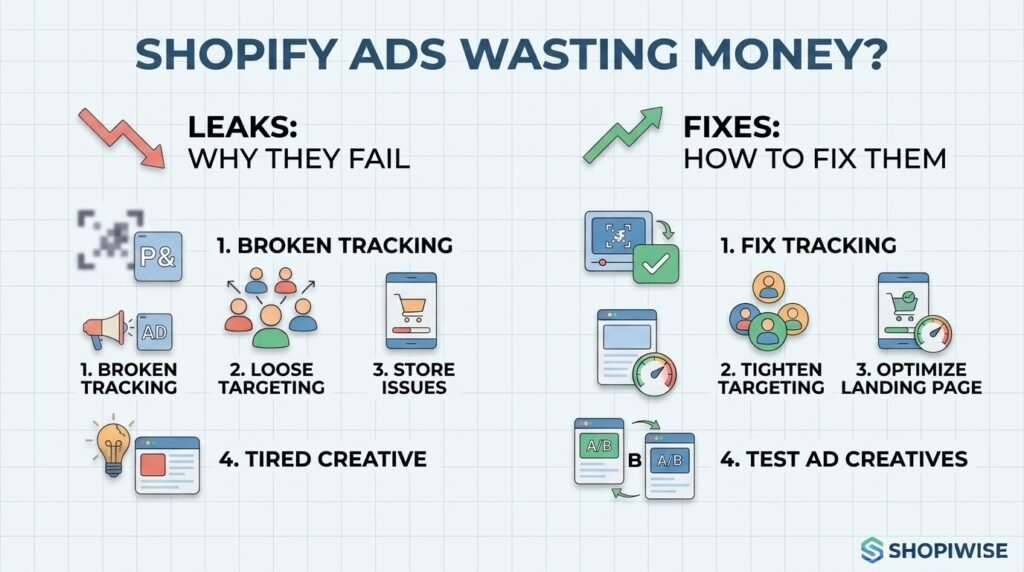
Why Your Shopify Ads Are Wasting Money (and How to Stop It) You are spending every day on ads, but the sales do not match the spend. Reports show clicks and impressions, yet profit is thin or missing. It is easy to blame the platform, but in most accounts the money leaks out through a handful of fixable problems. This guide covers the most common reasons Shopify ads waste money, including broken tracking, loose targeting, weak landing pages and tired creative, and gives you a practical routine to plug each leak. Why Do Shopify Ads Waste Money? Ad spend is usually wasted when tracking gives the platform poor signals, when targeting is too broad or overlaps, when you keep paying to reach people who already bought, when the campaign is optimized for the wrong action, when the page behind the ad does not convert, or when creative has gone stale. Add loose budget controls and no regular review, and the waste grows quietly. 1. Broken or Incomplete Tracking Ad platforms learn from the purchase data you send them. If the pixel is misconfigured or misses sales, the system optimizes on a blurry picture and spends accordingly. Shopify’s Facebook & Instagram channel offers data sharing levels, and the Enhanced level adds the Conversions API, which sends purchase data from the server. Compare purchases in your ad account with orders in Shopify. A large gap means fix tracking before changing anything else. 2. Targeting That Is Too Broad or Overlapping Ads shown to the wrong people cost just as much as ads shown to the right ones. Common leaks include targeting regions you do not ship to, running ad sets whose audiences overlap so they compete against each other, and expanding audiences without any exclusions. Use clear audience groups, check overlap, and build lookalikes from your best customers rather than all visitors. 3. Paying to Reach People Who Already Bought Recent buyers and people already receiving your email or SMS flows can still see your ads if you do not exclude them. You then pay for impressions that email could have handled more cheaply. Exclude recent purchasers, keep your lists updated and let your owned channels have the first chance with warm contacts. Consider a small holdout test to see how much your ads add on top of email. 4. Optimizing for the Wrong Objective If a campaign is set to maximize traffic, link clicks or engagement, the platform looks for people who click, not people who buy. Experienced advertiser Jon Loomer has warned that such campaigns often attract visitors who are far less likely to purchase. Where you have enough conversion data, test a sales or purchase objective instead. Boosting posts and chasing likes are other common ways money drains away. 5. Landing Page and Store Problems Even perfect ads waste money if the page behind them loses visitors. Check that the page matches the ad, loads quickly on mobile, makes shipping and returns clear, and shows genuine reviews and trust signals. Place a test order on your phone to catch checkout friction. Every second of delay and every missing answer costs you paid clicks. 6. Creative Fatigue and Weak Ads Ads that do not grab attention quickly, rely on generic images or talk only about features tend to underperform, and even strong ads wear out when the same people see them again and again. Watch frequency alongside cost and conversion trends. Test a few clearly different angles, such as the customer problem, a product demo or social proof, instead of many near-identical versions. 7. Messy Structure and Loose Budget Controls Too many small campaigns split your data and budget into thin slices. Campaigns left running with no conversions keep draining spend. One guide suggests pausing ad sets that produce nothing over about two weeks, and consolidating overlapping campaigns. Use cost caps or targets where they fit, check your placements, and avoid frequent edits that disrupt delivery. 8. Not Knowing Your Break-Even Point Some ads are not wasted because they fail, but because the numbers never worked. Work out your margin after product cost, shipping, payment fees and returns. Then calculate the cost per purchase you can afford. Without a break-even number, you cannot tell a winning campaign from a slow leak. How to Stop the Waste: A Weekly Review Check tracking. Compare ad account purchases with Shopify orders. Review spend by campaign. Find ad sets spending without conversions and pause or fix them. Check audiences. Look for overlap and make sure recent buyers are excluded. Check frequency and creative. Replace tired ads and test a new angle. Test your page. Visit it on mobile and place a test order if anything changed. Compare cost per purchase with your break-even. Adjust budgets only after the basics look sound. When you do raise budgets, one guide suggests increasing by about twenty percent at a time. That is one source’s suggestion, not a rule, so test what suits your account. A Simple Example Imagine a store selling pet grooming tools. A weekly review finds that purchases in the ad account are higher than Shopify orders because of duplicated events. Two ad sets also overlap, recent buyers are still being targeted, and the campaign is set to optimize for link clicks. After fixing tracking, excluding buyers, merging the ad sets and testing a purchase objective, the owner can finally see which ads actually earn money. This is an illustrative scenario, not a real client result. Common Mistakes to Avoid Raising the budget before fixing tracking and the store. Leaving recent customers in prospecting audiences. Optimizing for clicks or likes instead of purchases. Running many overlapping campaigns with thin data. Letting underperforming ads run for weeks without review. Judging success by revenue without knowing your break-even cost per purchase. Frequently Asked Questions How do I know if my Shopify ads are wasting money? Compare your cost per purchase with your break-even point, check for ad sets spending without conversions, and confirm that ad account

why winning ads stop converting and how to fix them
Digital Marketing

Why Your Winning Ad Suddenly Stops Converting

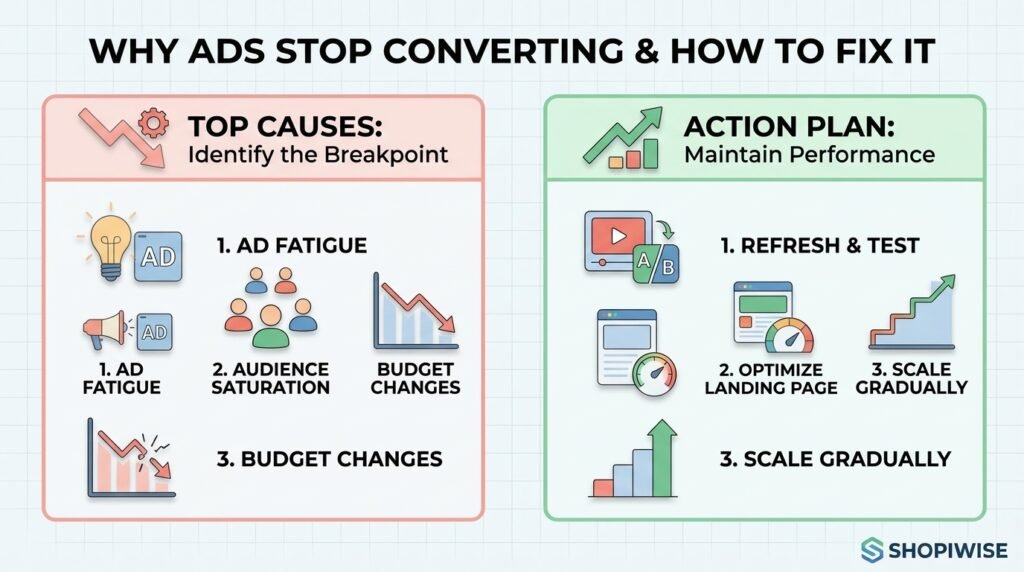
Why Your Winning Ad Suddenly Stops Converting (and How to Fix It) You finally find an ad that works. Sales come in at a healthy cost, so you raise the budget. Then, a week or two later, conversions fall off a cliff. Nothing obvious has changed in the campaign, yet the results look completely different. If you run ads for a Shopify store or any online shop, this is one of the most frustrating patterns in paid advertising. The good news is that a winning ad rarely stops working for a mysterious reason. In most cases it fades because of one of a handful of causes you can identify and test, and you can often recover performance without starting from zero. This guide explains why ads stop converting, how to tell which cause you are dealing with, and a practical plan to fix it and keep your results steadier over time. Why Do Winning Ads Stop Converting? Most winning ads stop converting because of creative fatigue, audience saturation, changes made while scaling, problems on the landing page or store, or shifts in the wider market. Often it is a mix of two or three. The key is to diagnose first, because the fix for each cause is different. The 5 Most Common Reasons a Winning Ad Stops Working 1. Creative Fatigue When the same people see the same ad again and again, they stop noticing it. Click-through rate slips, cost per result climbs, and a once-profitable ad drifts toward break-even. Marketing publications describe winning ads as something that usually decays gradually rather than failing overnight, and Shopify merchants on the Shopify Community forum describe ads that bring sales for the first few days and then fade. Creative fatigue is the most commonly blamed cause, but it is not the only one, so do not assume it before checking. 2. Audience Saturation and Overlap Sometimes the creative is fine and the audience is the problem. If your audience is small, or your retargeting and prospecting audiences overlap, the same people may see your ad far more often than you realize. One marketer writing about creative fatigue described an ad that looked burned out but recovered once audience overlap and spend pacing were corrected. It is a single account, not a rule, but it shows why a quick check of overlap and frequency is worth your time. 3. Changes Made While Scaling Scaling is where many winners die. Raising the budget sharply, changing countries, or editing the ad itself can all disrupt how the platform delivers it. Several Shopify merchants in community threads describe ads that worked at low spend but produced no sales once they were scaled. A learning period after big edits can also look exactly like fatigue, so check your change history before blaming the creative. 4. Landing Page or Store Problems Your ad may still be doing its job while the page behind it is not. Clicks stay steady but purchases drop. Common culprits include a slow mobile page, a product that went out of stock, a price or shipping change, a broken checkout step, an app conflict, or tracking that stopped recording purchases correctly. If the ad is still earning clicks, the store is the first place to look. 5. Market and Competition Shifts Ad costs are not fixed. Seasonality, new competitors, and busy shopping periods can push costs up even when your ad has not changed. If costs rise across all your campaigns at once, the cause is probably the auction rather than one tired creative. How to Diagnose the Real Cause Before you change anything, match what you see in your ad account to the most likely cause. Frequency alone is not proof of fatigue, so always look at more than one signal. What you see Likely cause First thing to check CTR falling and frequency rising on one ad Creative fatigue Daily CTR trend; test a fresh version of the creative Every ad in the ad set declining, with a small audience Audience saturation Audience size, overlap with other ad sets, frequency Drop right after a budget or targeting change Scaling or learning disruption Change history; compare performance before and after Clicks steady but purchases down Landing page, store or tracking Add-to-cart and checkout rates, page speed, stock, tracking Costs up across all campaigns Auction or market shift Other campaigns, seasonality, competitor activity Step-by-Step: How to Fix an Ad That Stopped Converting Pause before you edit. Review several days of data instead of reacting to one bad day. Changing five things at once makes it impossible to learn what worked. Find where the funnel breaks. Look at impressions, click-through rate, add-to-cart, checkout and purchases. The stage where numbers drop tells you whether the problem is the ad or the store. Test your own store. Place a test order on mobile, check page speed, confirm products are in stock, and make sure your purchase tracking still works. Review recent changes. List every budget, audience, creative or website change from the past two weeks and compare them with the date performance dropped. Refresh the creative, not just the copy. Try a new opening hook, a new angle (problem, benefit, social proof), or a new format such as a short demo, user-generated style video, or carousel. Keep the core offer that was working. Duplicate instead of editing the winner. Clone the ad and test one variable at a time so the original stays intact as a benchmark. Rework the audience. Broaden a tiny audience, exclude recent purchasers, and reduce overlap between ad sets so the same people are not being reached repeatedly. Scale in smaller steps. Increase budgets gradually and give each change time to settle before making the next one. Set your decision rules in advance. Decide how many days and how much spend you need before calling an ad dead, so you do not kill good ads too early. A Simple Example Imagine a store selling pet accessories. A video ad performs well for

turn first-time buyers into repeat customers shopify strategy
Shopify Tips

How to Turn First-Time Buyers Into Repeat Customers

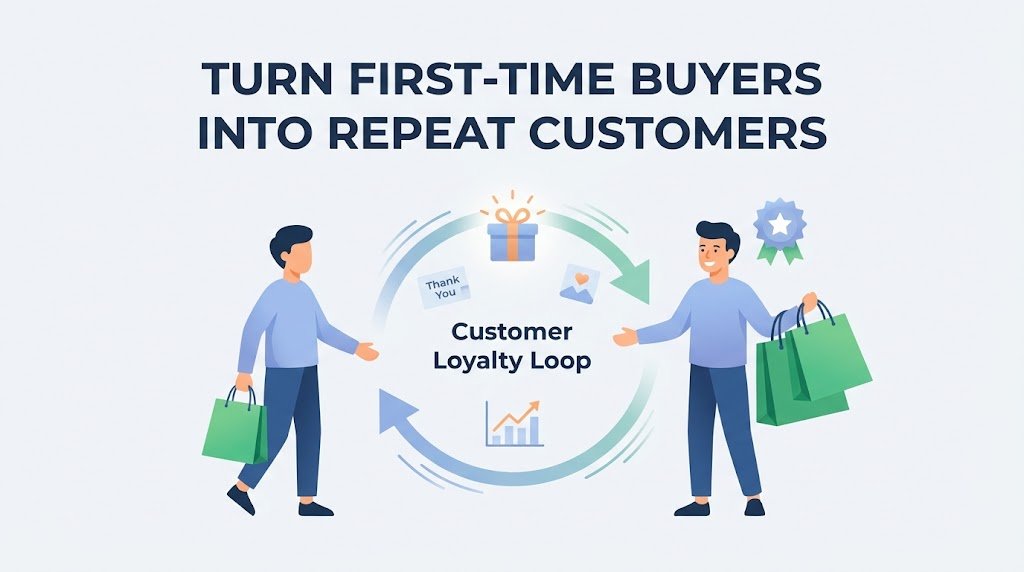
How to Turn First-Time Buyers Into Repeat Customers Getting a stranger to place their first order is a real win. But if that customer never comes back, you have paid for traffic, ads and fulfilment and received a single sale in return. The stores that grow steadily are usually the ones that learn how to turn first-time buyers into repeat customers, because a returning customer already trusts you and costs far less to reach than a brand-new visitor. This guide walks through a practical, step-by-step approach for Shopify store owners and online sellers. You will learn how to fix the first-order experience, build a simple post-purchase flow, reward loyalty without training people to wait for discounts, and measure whether any of it is working. Why Repeat Customers Matter for Your Store Acquisition gets the attention, but retention is where much of the long-term profit sits. A repeat buyer has already seen your product, your packaging and your support, so the biggest hurdle (trust) is mostly cleared. That usually means higher conversion rates, easier upsells and a healthier return on your marketing budget. It also changes how you think about growth. Instead of asking, “How do I find more buyers?”, you start asking, “How do I earn a second order from the buyers I already have?” The second question is often cheaper to answer. Step 1: Get the First Order Right No email sequence can rescue a bad first experience. Before you build any retention tactics, audit what a new customer actually goes through from checkout to unboxing: Delivery: Are your shipping times clear at checkout, and do you meet them? Late or unexpected delays are one of the fastest ways to lose a second sale. Packaging: Does the parcel arrive undamaged and look like it came from a real brand? A simple thank-you card or a clean unboxing moment goes a long way. Product match: Does the item look and perform the way your product page promised? Honest photos and accurate descriptions reduce returns and disappointment. Support: Can a customer reach you quickly if something goes wrong? Fast, friendly replies often turn a problem into loyalty. If customers keep asking the same question before or after buying, treat it as a signal. Add the answer to your product page, FAQ or confirmation email so the next buyer never has to ask. Step 2: Build a Post-Purchase Email Flow Many stores send only an order receipt and a shipping notice. Those messages have the highest open rates you will ever get, so use them well. A simple post-purchase flow can look like this: Right after checkout: confirm and reassure Send a clear confirmation that thanks the customer, explains what happens next and tells them when to expect delivery. Keep the tone human, not robotic. After delivery: help them get value A few days after the parcel arrives, send a short message with usage tips, care instructions or a quick how-to. Customers who get good results with a product are far more likely to buy again. Once they have had time to try it: ask for feedback Invite a review or ask a simple question about their experience. This builds social proof for future shoppers and gives you honest insight into what to improve. Near the end of the product cycle: suggest the next step If you sell something that runs out, such as skincare, coffee or supplements, a replenishment reminder timed to the typical usage period works well. If you sell durable goods, recommend accessories or complementary items instead of repeating the same product. The key is to match the timing to how your product is actually used. A reminder that arrives too early feels pushy, and one that arrives too late misses the moment. Step 3: Give Customers a Real Reason to Come Back People return when they feel recognized and rewarded, not just when they receive a coupon. Consider a mix of the following: A loyalty or rewards program: Points, tiers or perks for repeat purchases give customers a reason to choose you again. Make the balance visible in the customer account and in follow-up emails, otherwise people forget it exists. Early access: Letting past buyers see new products or restocks first costs you very little and makes them feel valued. Free shipping thresholds: A clear threshold can nudge shoppers to add an item and often raises average order value. A thoughtful second-order offer: A small, one-time incentive can work, but use it carefully. If every customer learns that a discount always follows the first purchase, they may simply wait for it. Step 4: Make Reordering Effortless Every extra step between “I want this again” and “order placed” costs you sales. Reduce the friction wherever you can: Encourage customers to create an account, or enable fast checkout options so their details are saved. Add a simple “buy again” link in follow-up emails that goes straight to the product. Offer a subscription option for products people use regularly. It turns a repeat decision into a default, so each subscriber becomes a repeat customer automatically. Step 5: Personalize Based on Purchase History Your store already collects useful data: what someone bought, when they bought it and how much they spent. Use it. Segment your list into simple groups such as first-time buyers, repeat customers and customers who have not purchased in a while. Then send each group something relevant instead of the same broadcast to everyone. For example, recommend a complementary product to a recent buyer, send a “we miss you” message to a lapsed customer, and give your best customers early access or a thank-you. Relevance almost always beats volume. How to Measure Whether It Is Working You cannot improve what you do not track. Start with these metrics: Repeat purchase rate: The percentage of customers who have bought more than once. A simple formula is repeat customers divided by total customers, multiplied by 100. Time to second order: How long it typically takes a customer to come back.

Shopify products not showing on Google search results
Shopify, shopify Seo

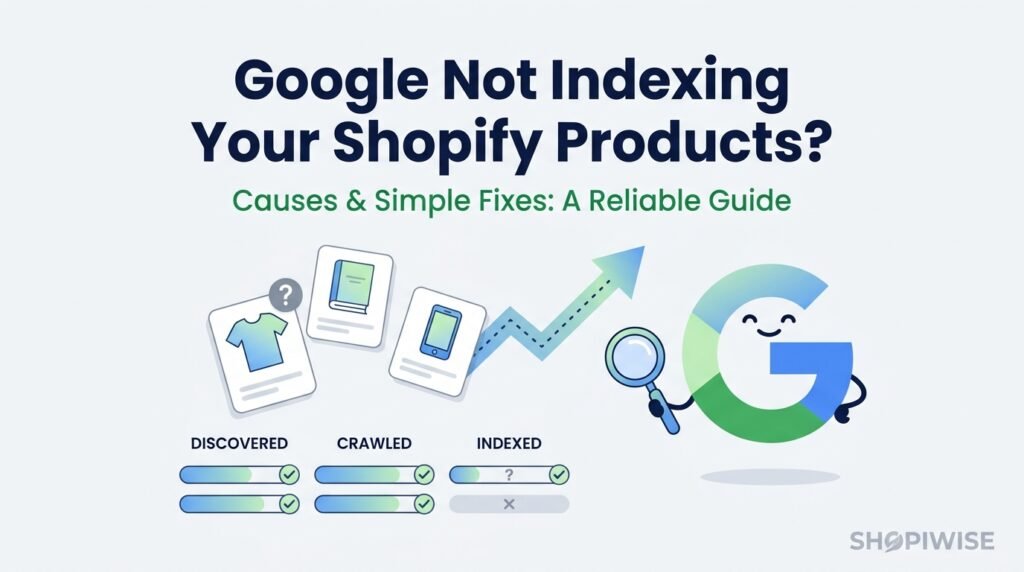
Google Not Indexing Your Shopify Products? Causes and Fixes

Why Google Isn’t Indexing Your Shopify Products You added your products, polished the descriptions and published the store. Then you search for a product name and nothing shows up. If that sounds familiar, you are dealing with a common problem: Google not indexing Shopify products. The good news is that the cause is usually findable, and most fixes are simple once you know where to look. This guide explains what indexing actually means, how to read the status Google gives each page, the most common reasons Shopify product pages get left out, and a step-by-step process to fix them. No tricks and no promises of instant rankings, just a clear way to diagnose your own store. What Does “Indexed” Mean? Google works in stages. It first discovers a URL, then crawls it (visits the page), and finally decides whether to add it to its index, the database that search results come from. A page that is not in the index cannot appear in search results, no matter how good the product is. Being crawled does not guarantee being indexed. Google chooses what to keep, and it can skip pages it considers duplicates, low value or blocked. That is why the first job is to find out which stage your product pages are stuck at. Step 1: Find Out What Google Is Telling You Open Google Search Console and go to the Page indexing report. It lists the pages Google has not indexed and the reason for each one. You can also paste a single product URL into the URL Inspection tool to see its status and run a live test. Here are the statuses you are most likely to meet: Discovered, currently not indexed: Google knows the URL exists but has not crawled it yet. Google says this is not an error, and it can happen when Google delays a crawl to avoid overloading your site. Crawled, currently not indexed: Google visited the page but chose not to index it for now. It may index the page later, and Google notes you do not need to resubmit it for crawling. Duplicate without user-selected canonical: Google sees the page as a copy of another and picked its own preferred version. Excluded by no index: A no index instruction told Google to keep the page out of the index. Blocked by robots.txt: Google was not allowed to crawl the page. Soft 404: The page looks like a “not found” page but returns a normal success response. The Most Common Reasons Shopify Products Are Not Indexed 1. Google has not found your products yet New stores often have no links pointing to them, so Google has little reason to visit. Shopify creates a sitemap automatically at yourdomain.com/sitemap.xml, and it links to separate sitemaps for products, collections, blogs and pages. Submitting it in Search Console gives Google a clear list of your URLs. In Search Console, go to Indexing, then Sitemaps, enter sitemap.xml and click Submit. 2. Your store is still in private mode Shopify notes that sitemaps cannot be read while a store is in private mode, so Google cannot use them. If your store is still password protected, remove the password before expecting products to be discovered. 3. The product pages are thin or copied This is one of the biggest causes of “Crawled, currently not indexed”. Many stores paste the manufacturer description onto every listing, or publish pages with only a title and a price. Google has little reason to keep a page that adds nothing new. Write original descriptions that answer real buyer questions: who the product is for, materials, sizing, use cases, shipping and returns. Add clear images and, where possible, genuine customer reviews. 4. Duplicate pages and canonical confusion Variants such as size and color can create near-identical pages, and products can be reachable through more than one URL. Shopify themes typically add canonical tags to point Google to the main product URL, but themes and apps can change this. If the “Duplicate without user-selected canonical” status appears, check that each product page declares the correct preferred URL, and make genuinely different products look genuinely different. 5. A no index tag or robots.txt rule is blocking the page A stray no index tag, often added by an SEO app, a theme edit or a developer testing the store, can quietly keep products out of Google. Run a live test in URL Inspection to see whether Google can crawl and index the page. If you find a no index tag you did not intend, remove it, confirm with a live test, and then request indexing. Also review your robots.txt rules to make sure product URLs are not blocked. 6. Weak internal linking Pages that few other pages link to look unimportant. Make sure every product belongs to at least one collection, collections appear in your navigation, and your best products are linked from your homepage, blog posts and related-product sections. Strong internal links help Google discover products and understand which ones matter. 7. Soft 404s and unavailable products If a discontinued product page says “not found” or “unavailable” but still loads normally, Google may treat it as a soft 404. For products that are gone for good, use a proper redirect to a relevant collection or similar product. For products that are only temporarily out of stock, keep the page useful with details and a back-in-stock option. 8. Slow or unreliable pages Heavy themes, oversized images and too many apps can slow your store. Slow or error-prone pages make crawling harder and give shoppers a poor experience as well. Compress images, remove apps you do not use and test your key product pages on mobile. How to Fix Indexing Problems: A Simple Workflow Open the Page indexing report and group affected URLs by status. Inspect one affected product page with URL Inspection and run a live test. Fix the cause: remove accidental no index tags, correct canonicals, strengthen thin content or improve internal links. Confirm your sitemap is

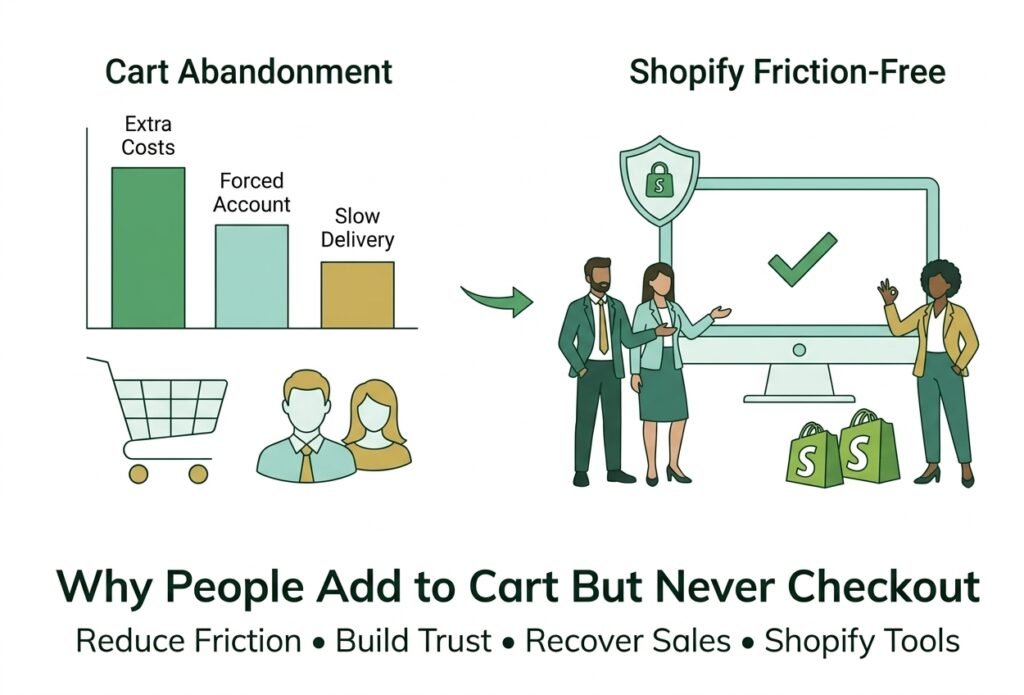
Shopify cart abandonment chart and friction-free checkout illustration
Shopify

Why People Add to Cart But Never Checkout

Why People Add to Cart But Never Checkout (And Shopify cart abandonment) Adding a product to the cart is one of the strongest buying signals a visitor can give. They found something they liked, picked a size or color, and committed to the next click. Then they leave. If you run a Shopify store, abandoned carts can feel like money slipping through your fingers. Some of it is normal. Bayard Institute, which tracks checkout research, puts the average documented cart abandonment rate at about 70%, based on an average of 50 studies. And in its survey of US shoppers, the most common reason for abandoning a cart was simply not being ready to buy. The rest is fixable. This guide covers the reasons shoppers most often give, how to fix each one on your store, and how to win back the carts you have already lost. What Shoppers Say About Why They Abandon Carts   In Bayard’s latest quantitative survey of US online shoppers, 42% said they were just browsing or not ready to buy. Among the other reasons shoppers gave, these stood out: Extra costs such as shipping, tax, and fees were too high: 40% Delivery was too slow: 20% Distrust of the site with credit card details: 19% An account was required: 18% Checkout was too long or complicated: 17% Errors or crashes on the website: 17% The return policy was unsatisfactory: 13% The total cost could not be seen up front: 12% Notice how many of these are about surprises, doubt, and effort. Those are things you control. The seven reasons below turn that list into a plan. 7 Reasons Shoppers Add to Cart but Never Checkout 1. Surprise Costs Appear Too Late Extra costs were the largest fixable reason in Bayard’s survey. When shipping, tax, or fees only show up on the last step, the price feels higher than the one on the product page, and shoppers leave. The fix: show  shipping information early, ideally on the product page and in the cart. Bayard recommends displaying the full order cost in the cart, or a clear estimate with an explanation when the exact total is not known yet. If you offer free shipping above a threshold, show how close the shopper is. 2. You Force Shoppers to Create an Account Many people buy once and never come back. Asking them to set a password before paying adds work at the worst possible moment. The fix: offer guest checkout and make it the most visible option. Bayard suggests delaying account creation until after the purchase. Review your customer account and checkout settings in Shopify so accounts are optional. 3. The Checkout Form Feels Long or Confusing Long forms, repeated fields, and unclear labels make checkout feel like homework, especially on a phone. Bayard notes that reducing perceived complexity matters more than simply cutting the number of steps. The fix: ask only for what you need, hide fields that do not apply, and make sure autofill and address suggestions work. Test every field on a real phone. 4. Shoppers Do Not Trust the Payment Step Typing card details into a store you have never heard of is a leap of faith. About one in five shoppers in Bayard’s survey cited distrust with card information, and 13% were unhappy with the return policy. The fix: make returns and contact details easy to find, keep the design consistent with the rest of your brand, show real reviews, and use familiar payment options. Never invent badges or testimonials; false trust signals backfire. 5. Delivery Is Slow or Unclear Delivery speed ranked among the top reasons in the survey. Vague promises like “ships in 5 to 10 days” leave shoppers guessing. The fix: show shipping speeds and costs early and keep them visible through checkout. Bayard suggests an estimated delivery date rather than only a speed label. If delivery is slow, be honest about it and explain why. 6. Payment Options Are Limited A card-only checkout can lose shoppers who prefer wallets, PayPal, or local methods. Failed payments with unhelpful error messages make it worse. The fix: offer the payment methods your customers actually use in your market. Shopify’s one-tap accelerated checkout, Shop Pay, reuses saved details so returning shoppers skip typing. Shopify publishes its own conversion figures for it, so treat those as vendor claims and measure results in your own store. 7. Errors, Slow Pages, and Mobile Friction Site errors or crashes were  cited by 17% of shoppers in the survey. Broken discount codes, buttons that do not respond, and layouts that jump on small screens all stop purchases. The fix: place test orders on a phone and a desktop in different browsers, including a discount code and each shipping option, and fix anything that stalls or confuses you. How to Recover Carts That Were Already Abandoned Fixing friction prevents future losses, but you can also follow up on past ones. According to Shopify’s Help Center, a checkout counts as abandoned when a shopper has entered their email but has not paid within ten minutes. You can find these in your admin under Orders, then Abandoned checkouts. Open Orders and select abandoned checkouts to see whom left, and read each timeline to spot payment failures. Go to Apps, Messaging, and Automations and open the abandoned checkout email automation. Turn on automatic sending, then choose who receives it and how long to wait before sending. Customize the template so it matches your brand and links back to the checkout. Review the results after a few weeks and adjust the timing or wording. A few limits are worth knowing. Recovery emails apply to the Online Store and Buy Button channels, and Shopify deletes abandoned checkouts after three months. Shopify’s page does not cover marketing consent, so check the email rules for the countries you sell to. Bayard also cautions that follow-up emails mostly help shoppers who were distracted, not those who were frustrated, so do not rely on them to hide

Ecommerce, Shopify

Why Your Shopify Homepage Is Losing Customers

Why Your Shopify Homepage Is Losing  Customers (And How to Fix It) You pay for traffic, publish content, and run ads, yet most visitors leave your Shopify store without clicking a single product. When that happens, the problem often starts with the first page they see: your homepage. For many brands the homepage is the main entrance. A Shopify-focused newsletter, 58 Clicks, notes that up to half of a store’s traffic may land there first. If that entrance feels confusing, slow, or untrustworthy, people turn around before they browse. This guide covers the most common reasons a Shopify homepage loses customers, how to spot each one, and what to change first to improve your Shopify homepage conversion. You do not need a new theme to get started. What Your Shopify Homepage Actually Has to Do Your homepage does not need to sell everything. It needs to answer three questions fast: What is this store? Is it for me? What should I do next? Think of it as a routing page that orients visitors and sends them to the right collection or product. Guides on Shopify homepage design commonly list the same building blocks: a hero section, trust signals, featured collections, best-selling products, a short brand story, social proof, and an email capture form. Every mistake below breaks at least one of those jobs. One more point before we start. Many teams switch themes hoping conversion will follow, but most themes are built from similar blocks. If the message, structure, and trust signals stay the same, a new design often changes how the page looks without changing how it performs. 6 Reasons Your Shopify Homepage Is Losing Customers Your Value Proposition Is Unclear Show your homepage to someone unfamiliar with your brand for five seconds, then ask what you sell and who it is for. If they hesitate, visitors are hesitating too. Headlines such as “Welcome to our store” fill space without saying anything. The fix: write a headline that states what you sell, who it helps, and one clear benefit. Add a short supporting line and show the actual product in the hero image. For example, “Everyday running gear for beginners, with free returns” tells a visitor far more than a greeting does. The Hero Section Has No Clear Next Step A beautiful banner without a button is a missed opportunity. When visitors have to guess where to click, many simply do not. The fix: give the hero one primary call to action in a high-contrast color, and make the label specific. One ecommerce design guide suggests that “Shop Best-Sellers” often works better than “Learn More” for cold traffic. Treat that as a hypothesis to test in your own store, not a rule. Navigation Makes Visitors Think Crowded menus, clever category names, and endless dropdowns slow people down. A menu is a map, and it is not the place to be creative. The fix: keep the top menu to the essentials, use plain words shoppers already search with, and consider shortcuts such as Best-Sellers, Bundles, or Gift Sets if they match how your customers shop. The Homepage Reads Like a Catalog Many homepages try to show every product, which leaves visitors overwhelmed and unsure where to start. Others never link directly to product pages at all. The fix: feature a small set of collections and best-sellers, and link them straight to collection or product pages. Be selective. If a section does not help a visitor choose a path, it probably does not belong on the page. There Is Not Enough Trust Up Front First-time visitors are asking silent questions: Is this store real? Will my order arrive? Can I return it? When the answers sit on an About page or in the footer, many people never find them. The fix: bring proof to the surface. Add customer reviews, a short line on shipping and returns, visible payment options, and clear contact details near the top of the homepage or just below the hero. Use real reviews and real policies only. Your Homepage Is Slow, Heavy, or Weak on Mobile Large hero images, too many apps, and layout jumps make a store feel unreliable, especially on phones. Google’s Core Web Vitals give you clear targets measured on real visits: Largest Concertful Paint (loading) of 2.5 seconds or less, Interaction to Next Paint (responsiveness) of 200 milliseconds or less, and Cumulative Layout Shift (visual stability) of 0.1 or less, each at the 75th percentile. The fix: compress the hero image and use modern formats such as WebP, avoid lazy-loading the main hero image, set width and height on images so the page does not jump, and remove apps and scripts you no longer use. Check results in PageSpeed Insights or Google Search Console. Speed is one factor among many, but it shapes how every other part of your homepage feels. A Simple Homepage Structure That Works for Most Stores There is no universal template, yet most stores can start from this order and adjust it to their products and audience: Announcement bar for shipping, returns, or a current offer Header with a simple menu, search, and cart Hero with a clear message and one primary call to action Trust bar with review rating, return policy, and payment options Featured collections Best-sellers or new arrivals Social proof and a short brand story Email signup and a footer with policies and contact details How to Audit Your Homepage in 30 Minutes Run the five-second test. Ask someone who has never seen your store what it sells and what they would click first. Check your numbers. Look at the homepage-to-product click-through rate and conversion rate by traffic source, since paid, organic, and returning visitors behave differently. Use your own phone. Scroll the page on a real device and note anything slow, cramped, or hard to tap. Run Page Speed Insights. Look at the real-user data when it is available, and write down the biggest issue. Pick one change. Choose the fix most likely to

Scroll to Top