
Shopify tips

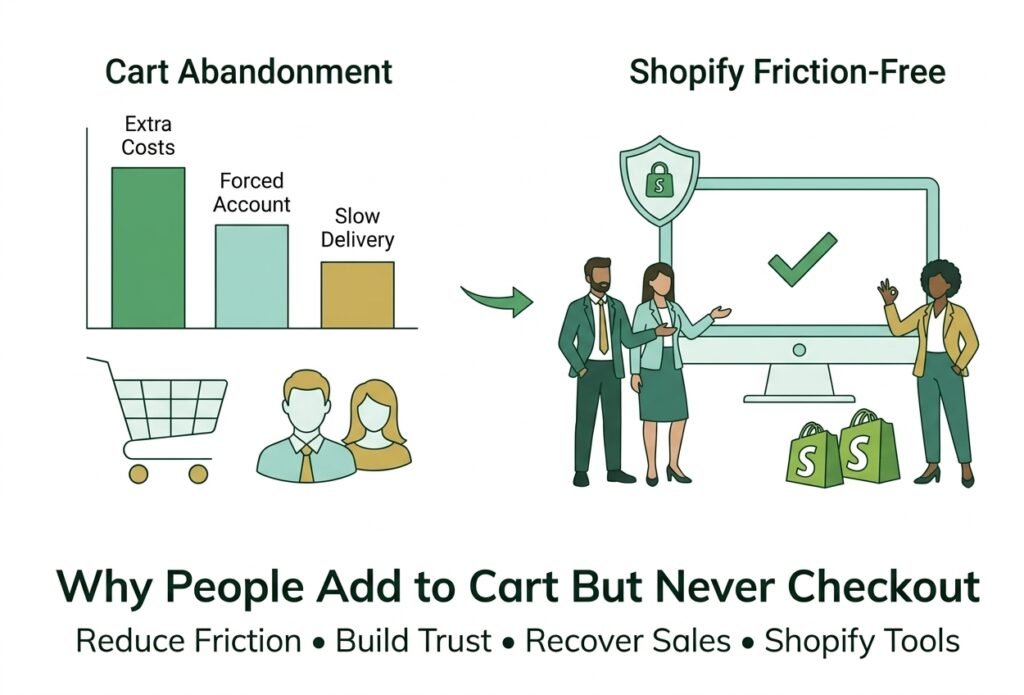
Shopify cart abandonment chart and friction-free checkout illustration
Shopify

Why People Add to Cart But Never Checkout

Why People Add to Cart But Never Checkout (And Shopify cart abandonment) Adding a product to the cart is one of the strongest buying signals a visitor can give. They found something they liked, picked a size or color, and committed to the next click. Then they leave. If you run a Shopify store, abandoned carts can feel like money slipping through your fingers. Some of it is normal. Bayard Institute, which tracks checkout research, puts the average documented cart abandonment rate at about 70%, based on an average of 50 studies. And in its survey of US shoppers, the most common reason for abandoning a cart was simply not being ready to buy. The rest is fixable. This guide covers the reasons shoppers most often give, how to fix each one on your store, and how to win back the carts you have already lost. What Shoppers Say About Why They Abandon Carts   In Bayard’s latest quantitative survey of US online shoppers, 42% said they were just browsing or not ready to buy. Among the other reasons shoppers gave, these stood out: Extra costs such as shipping, tax, and fees were too high: 40% Delivery was too slow: 20% Distrust of the site with credit card details: 19% An account was required: 18% Checkout was too long or complicated: 17% Errors or crashes on the website: 17% The return policy was unsatisfactory: 13% The total cost could not be seen up front: 12% Notice how many of these are about surprises, doubt, and effort. Those are things you control. The seven reasons below turn that list into a plan. 7 Reasons Shoppers Add to Cart but Never Checkout 1. Surprise Costs Appear Too Late Extra costs were the largest fixable reason in Bayard’s survey. When shipping, tax, or fees only show up on the last step, the price feels higher than the one on the product page, and shoppers leave. The fix: show  shipping information early, ideally on the product page and in the cart. Bayard recommends displaying the full order cost in the cart, or a clear estimate with an explanation when the exact total is not known yet. If you offer free shipping above a threshold, show how close the shopper is. 2. You Force Shoppers to Create an Account Many people buy once and never come back. Asking them to set a password before paying adds work at the worst possible moment. The fix: offer guest checkout and make it the most visible option. Bayard suggests delaying account creation until after the purchase. Review your customer account and checkout settings in Shopify so accounts are optional. 3. The Checkout Form Feels Long or Confusing Long forms, repeated fields, and unclear labels make checkout feel like homework, especially on a phone. Bayard notes that reducing perceived complexity matters more than simply cutting the number of steps. The fix: ask only for what you need, hide fields that do not apply, and make sure autofill and address suggestions work. Test every field on a real phone. 4. Shoppers Do Not Trust the Payment Step Typing card details into a store you have never heard of is a leap of faith. About one in five shoppers in Bayard’s survey cited distrust with card information, and 13% were unhappy with the return policy. The fix: make returns and contact details easy to find, keep the design consistent with the rest of your brand, show real reviews, and use familiar payment options. Never invent badges or testimonials; false trust signals backfire. 5. Delivery Is Slow or Unclear Delivery speed ranked among the top reasons in the survey. Vague promises like “ships in 5 to 10 days” leave shoppers guessing. The fix: show shipping speeds and costs early and keep them visible through checkout. Bayard suggests an estimated delivery date rather than only a speed label. If delivery is slow, be honest about it and explain why. 6. Payment Options Are Limited A card-only checkout can lose shoppers who prefer wallets, PayPal, or local methods. Failed payments with unhelpful error messages make it worse. The fix: offer the payment methods your customers actually use in your market. Shopify’s one-tap accelerated checkout, Shop Pay, reuses saved details so returning shoppers skip typing. Shopify publishes its own conversion figures for it, so treat those as vendor claims and measure results in your own store. 7. Errors, Slow Pages, and Mobile Friction Site errors or crashes were  cited by 17% of shoppers in the survey. Broken discount codes, buttons that do not respond, and layouts that jump on small screens all stop purchases. The fix: place test orders on a phone and a desktop in different browsers, including a discount code and each shipping option, and fix anything that stalls or confuses you. How to Recover Carts That Were Already Abandoned Fixing friction prevents future losses, but you can also follow up on past ones. According to Shopify’s Help Center, a checkout counts as abandoned when a shopper has entered their email but has not paid within ten minutes. You can find these in your admin under Orders, then Abandoned checkouts. Open Orders and select abandoned checkouts to see whom left, and read each timeline to spot payment failures. Go to Apps, Messaging, and Automations and open the abandoned checkout email automation. Turn on automatic sending, then choose who receives it and how long to wait before sending. Customize the template so it matches your brand and links back to the checkout. Review the results after a few weeks and adjust the timing or wording. A few limits are worth knowing. Recovery emails apply to the Online Store and Buy Button channels, and Shopify deletes abandoned checkouts after three months. Shopify’s page does not cover marketing consent, so check the email rules for the countries you sell to. Bayard also cautions that follow-up emails mostly help shoppers who were distracted, not those who were frustrated, so do not rely on them to hide

Comparison of a messy versus a professional Shopify store layout
Shopify

Why Your Shopify Store Looks Unprofessional (7 Fixes)

Why Your Shopify Store Looks Unprofessional (And How to Fix It) You have good products, a working checkout, and a theme you picked with care. Still, the store feels amateur, and shoppers seem to agree: they browse for a few seconds and leave. A Shopify store that looks unprofessional rarely suffers from one big flaw. It usually comes from a pile of small inconsistencies that quietly tell visitors this business might not be reliable. That matters because shoppers cannot touch your product or meet you. They judge the business by what they see. Nielsen Norman Group’s ecommerce research found that visual design, company information, product detail, pricing clarity, performance, and support all shape how much people trust a store. This guide covers seven common reasons a Shopify store looks unprofessional, with a practical fix for each. You can make most of them without changing your theme. What “Unprofessional” Really Means to Shoppers Shoppers rarely say a store looks unprofessional out loud. They feel it as doubt. Is this business real? Will my order arrive? What happens if something goes wrong? Trust is built from the whole experience, not only the logo. That is good news, because it gives you a checklist. Each reason below maps to a trust signal shoppers look for, from polished design to clear policies and a smooth, secure experience. 7 Reasons Your Shopify Store Looks Unprofessional 1. Your Branding Is Inconsistent Mixed fonts, too many accent colors, and a logo that changes between the header, favicon, and social profiles make a store feel assembled from parts. The fix: choose one logo version, two or three brand colors, and one or two fonts. Set them in your theme settings so every section inherits them, and write them on a one-page style guide so anyone who edits the store follows the same rules. 2. Product Photos Are Inconsistent or Low Quality Different backgrounds, lighting, and product sizes within the frame make a collection grid look uneven. Photo room’s guidance names mixed shapes and inconsistent scale as common image mistakes and Shopify’s own photography style guide recommends consistent backgrounds, lighting, and editing. The fix: pick one aspect ratio per collection (square is common), one background style, and one editing approach. Show several angles, give each variant its own accurate image, and export in a modern format such as Web at a sensible size so pages stay fast without looking soft. 3. The Design Is Loud or Cluttered Overly bright colors, stacked banners, popups that fire immediately, and crowded sections tire the eyes and bury your message. One Australian web agency lists aggressive color schemes among the Shopify design mistakes that make a store look unprofessional. The fix: use a calm palette and save strong contrast for the one thing you want clicked. Add white space, limit popups, and remove any section that does not help the visitor choose. 4. Product Descriptions Are Thin or Generic Copied manufacturer text, one-line descriptions, and vague claims such as “high quality” tell shoppers nothing and suggest nobody is minding the store. Inaccurate descriptions damage trust even further. The fix: lead with what the product helps the customer do, then add the details buyers need: materials, dimensions, care, sizing, and what is included. Use the questions customers email you as a guide, and keep the layout the same across products. 5. Important Trust Pages Are Missing or Hidden Shoppers look for an about page, contact details, shipping information, a returns or refund policy, a privacy policy, and terms. When these are missing, buried, or full of placeholder text, the store feels risky. Guides to Shopify legal pages recommend having terms, privacy, and refund policies, and they note that templates are not legal advice. The fix: link these pages in the footer, write plain-language shipping and returns information that matches what you actually do, and give customers a real way to reach you. Have policy text reviewed for the regions you sell to. 6. The Store Is Slow or Awkward on Mobile Many shoppers browse on phones. Tiny text, buttons packed too close together, images that push content around, and slow loading all feel careless. A missing search bar also frustrates people who know what they want. The fix: review every key page on a real phone. Compress images, remove apps you no longer use, and aim for Google’s “good” Core Web Vitals: Largest Concertful Paint of 2.5 seconds or less, Interaction to Next Paint of 200 milliseconds or less, and Cumulative Layout Shift of 0.1 or less. Add a visible search bar if you sell many products. 7. Small Details Are Unfinished Leftover theme sample text, placeholder copy, broken links, a missing favicon, mismatched button styles, typos, and empty collections each look minor. Together they signal that nobody is checking the store. The fix: do a click-everything pass. Open every menu item, button, collection, and footer link on desktop and mobile. Replace sample content, fix broken links, add a favicon, and proofread product pages. Quick Wins You Can Do This Week Set your brand colors and fonts once in the theme settings. Re-edit your top 10 product images to share one ratio and background. Rewrite the descriptions of your best-selling products. Publish or clean up your About, Contact, Shipping, Returns, Privacy, and Terms pages. Test the store on two different phones. Remove one banner, popup, or section that adds noise. Mistakes to Avoid While Making Your Store Look Professional Buying a new theme first. A new theme will not fix inconsistent photos or thin copy. Copying a big brand. Their budget, traffic, and recognition are different from yours. Faking trust. Made-up reviews, invented badges, or “as seen in” logos you have not earned are misleading, can break advertising and consumer-protection rules, and destroy credibility when discovered. Changing everything at once. Make a few changes, then review how the store feels and performs. Frequently Asked Questions Can I make my Shopify store look professional without a designer? Yes. Consistent photos, brand settings, clear copy,

Scroll to Top