
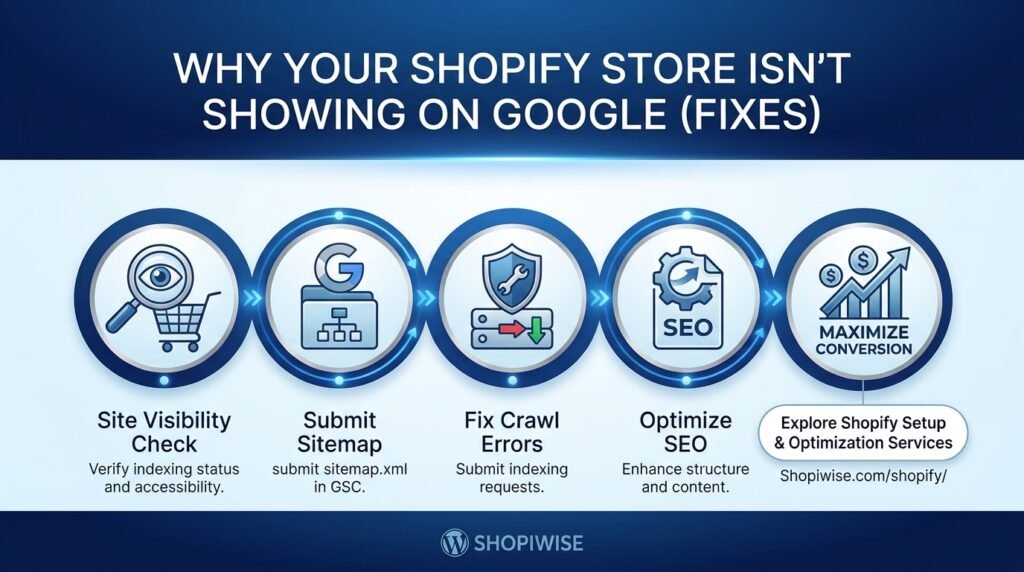
Why Your Shopify Store Isn’t Showing on Google
You have built your Shopify store, added products, and published your pages—but when you search for your business on Google, nothing appears. It is frustrating, especially when you expect search engines to help potential customers discover your products.
The first thing to understand is that not appearing for a particular search does not always mean your store is missing from Google’s index. Your site might be indexed but ranking too low for the terms you are using. Or Google may not have discovered or indexed some pages yet.
This guide walks through the checks that matter most, from store visibility and sitemap submission to page-level indexing and content quality. Work through them in order so you can identify the likely issue before making unnecessary changes.
First, check whether Google has indexed your store
Open Google and search for site: yourdomain.com, replacing yourdomain.com with your actual domain. For example, use site: example.com. If pages from your store appear, Google has indexed at least some of your website. If nothing appears, investigate indexing and accessibility before focusing only on rankings.
This quick search is a useful first check, but it is not a complete diagnosis. For a more reliable view of a particular URL, use the URL Inspection tool in Google Search Console. It can report whether Google knows about a page and show relevant indexing information.
Also separate two different problems: a page that is not indexed and a page that is indexed but does not rank well. The first requires discovery or indexing troubleshooting; the second usually calls for improving relevance, usefulness, site structure, and overall SEO.
1. Your store is new or has not been discovered yet
New websites can take time to be crawled and indexed. Google does not promise a fixed indexing timeline, and submitting a sitemap does not guarantee that every URL will be indexed.
What to do:
- Verify your domain in Google Search Console.
- Inspect the homepage and a few important product or collection URLs.
- Submit your sitemap and make sure important pages can be reached through normal links from your navigation, collections, or blog.
- After fixing any issues, use URL Inspection to request indexing for a small number of important URLs when the option is available.
2. Your store is not publicly accessible
Google must be able to access a page to crawl it. Check whether your storefront is password-protected or otherwise restricted. Shopify’s SEO guidance also notes that trial stores are not indexed by search engines, so confirm that your store is on an appropriate active plan and launched publicly.
Open your store in a private/incognito browser window where you are not logged in. If visitors are asked for a password or cannot access the storefront, resolve the access issue before expecting normal search visibility.
3. Your sitemap has not been submitted—or has errors
Shopify automatically creates a sitemap at your domain’s root, usually yourdomain.com/sitemap.xml. It helps search engines discover URLs for products, collections, pages, and blog posts.
In Google Search Console, open Sitemaps and submit the sitemap path. Check the status after submission and investigate any reported fetch errors. A sitemap helps Google discover pages; it does not force Google to index them or improve rankings by itself.
Avoid creating multiple sitemap submissions for different domain variants without understanding which domain is canonical. Make sure Search Console is set up for the correct domain/property and that your primary domain is consistent.
4. Important pages are hidden or marked no index
A product or page may be live for customers but intentionally excluded from search engines. In Shopify, review the product, page, or blog post’s publication and visibility settings. Check for any SEO app, theme customization, met afield, or custom code that adds a no index directive.
Do not edit robots.txt or theme code blindly. Shopify provides a default robots.txt configuration for most stores, and changing it without a clear reason can create new crawling problems. If you find a no index rule on a page that should appear in search, remove it using the relevant setting or have a developer review the implementation.
Remember: robots.txt controls crawling access; it is not a reliable way to remove a URL from Google’s index. Use the appropriate indexing directive or access restriction for the intended outcome.
5. Product and collection pages are hard to discover
Google may struggle to find pages that have few internal links pointing to them. A product buried deep in the store, absent from relevant collections, or linked only through an unusual interaction may be harder to discover.
Improve internal discovery by linking related products from relevant collections, adding helpful links between related blog posts and product categories, and ensuring important pages can be reached through ordinary navigation. Keep the structure useful for shoppers first; do not add repetitive links solely to manipulate search engines.
6. Your content gives Google little reason to show the page
Indexing does not guarantee visibility for valuable searches. Product pages with copied supplier descriptions, vague titles, thin information, or no clear differentiation may struggle to compete with more useful results.
For each important product page, explain what the product does, who it is for, its key benefits, relevant specifications, sizing or compatibility, shipping and returns information, and questions a buyer might ask. Use a clear page title and a specific heading. Add original images where practical and write accurate alt text that describes the image.
For example, instead of a generic title such as ‘Bottle – Blue’, a more descriptive title might be ‘Insulated Stainless Steel Water Bottle – 750 ml, Blue’ if those details are accurate. Do not add features, materials, or claims that the product does not actually have.
7. Your domain changed or redirects are missing
If you moved from another ecommerce platform, changed domains, or altered URL structures, Google may still know older URLs. Missing or incorrect redirects can break paths to important pages and weaken continuity for users and search engines.
Review your old high-value URLs, redirect relevant old addresses to the closest equivalent new pages, and update internal links to point directly to current URLs. Avoid redirecting every old URL to the homepage when a relevant destination exists.
8. Technical errors are preventing crawling
Use Search Console’s URL Inspection and Pages reports to look for issues such as server errors, not-found pages, redirect problems, or pages Google considers duplicates. Check that important URLs load reliably and return the expected page rather than an error or an empty response.
If a report mentions a canonical URL, remember that Google may choose one representative URL when several pages are duplicates or very similar. Confirm that the preferred version is the one you want indexed. If the cause is unclear or involves theme/app code, get a Shopify developer or SEO specialist to investigate before editing production files.
A practical troubleshooting checklist
- Search site:yourdomain.com to see whether any pages appear.
- Verify the correct domain/property in Google Search Console.
- Open your storefront while logged out and confirm it is public.
- Submit yourdomain.com/sitemap.xml in Search Console.
- Inspect the homepage and a few key product/collection URLs.
- Check publication status, no index directives, and relevant visibility settings.
- Add useful internal links to important pages.
- Improve thin or copied product copy with accurate, original buyer-focused details.
- Review redirects and technical errors after a domain or platform migration.
- Recheck Search Console after changes; allow time for Google to recrawl.
Common mistakes to avoid
- Assuming a site is not indexed just because it does not rank for one keyword.
- Expecting sitemap submission to guarantee indexing or immediate rankings.
- Changing robots.txt or theme code without identifying the actual issue.
- Publishing large amounts of copied or low-value content to try to force visibility.
- Repeatedly changing URLs without planning redirects.
- Expecting every product page to be indexed simply because it is published.
Frequently asked questions
How long does Google take to index a Shopify store?
There is no guaranteed timeline. New or updated pages may be discovered relatively quickly, but crawling and indexing can take longer. Use Search Console to check status rather than relying on a fixed number of hours or days.
Does submitting a sitemap guarantee that my store will appear on Google?
No. A sitemap helps Google discover URLs, but it does not guarantee crawling, indexing, or ranking. Pages still need to be accessible and suitable for indexing.
Why is my homepage on Google but my products are not?
Individual product pages may be unpublished, excluded from indexing, difficult to discover through internal links, canonicalized to another URL, or not selected for indexing. Inspect the affected URLs individually in Search Console.
Can I force Google to index a page?
You cannot force indexing. You can use URL Inspection to request indexing after resolving problems, but Google decides whether and when to crawl and index the page.
Should I change my Shopify robots.txt file?
Usually not as a first step. Shopify provides a default robots.txt file for typical stores. Investigate Search Console and page-level settings first, and only customize crawling rules when you understand the specific need.
Conclusion: Diagnose before you redesign
When your Shopify store is missing from Google, start by checking whether it is truly unindexed or simply not ranking for the search you tried. Then confirm that the store is public, submit the sitemap, inspect important URLs, review page visibility and technical directives, and improve internal linking and product content.
Make one set of well-informed changes at a time and monitor the results in Google Search Console. If the problem involves redirects, theme code, conflicting SEO app settings, or widespread indexing exclusions, a technical review can save time and prevent further issues.
Need help improving your Shopify store’s search visibility? Explore Shopiwise for practical Shopify support and guidance. Focus first on making your store accessible, useful, and easy for both shoppers and search engines to understand.